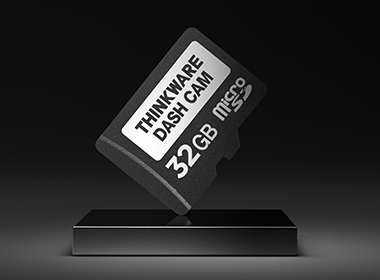
THINKWARE MicroSD Card
The THINKWARE MicroSD Card is the best choice for your dash cam needs. With advanced Sudden Power Off Recovery (SPOR) technology, our SD cards ensure your footage remains intact and uncorrupted, even during sudden power losses.
We highly recommend using THINKWARE MicroSD Cards as they are the only SD Cards guaranteed to be fully compatible with our Dash Cams. While other brands may meet the card requirements, their file settings and systems can vary between batches. Therefore, we cannot ensure their performance or recommend using non-THINKWARE MicroSD cards with our products. Using third-party MicroSD cards may result in issues such as rebooting, lost footage, gaps in recording, and card corruption. The performance depends solely on the type and brand of the MicroSD card used. Please note that using a third-party MicroSD card is at your own risk.
Corrupted MicroSD Card
When a corrupted memory card is inserted into our dash cams, the device repeatedly restarts as it tries to allocate space on the card for saving files.
1. Startup Warning:
The dash cam will display a message saying, “Format SD Card Regularly for Data Integrity.” If this message appears at each startup and formatting does not resolve the issue, the MicroSD card is likely corrupted.
2. Memory Card Error:
If you hear the device say “Memory Card Error.” this is another strong indication of corruption.
If you suspect that your MicroSD card is becoming corrupted, try inserting it into your home computer. If the card cannot be properly formatted, it’s time to replace it.
Partitioning the Memory Card
What is Partitioning the Memory Card?
Partitioning the memory card allocates specific portions of space for each type of recording, ensuring optimal performance and longevity. This method is particularly advantageous as it prevents footage corruption during sudden power loss, such as in an accident, and also extends the SD card’s lifespan.
We offer three partitioning options: Type A, Type B, and Type C, each tailored to different recording needs.
How to Change the Memory Partition
To alter the Memory Partition Setting:
- Connect the Dash Cam to the Mobile app or on your LCD touchscreen
- Go to Dash Cam Settings > Memory Card Settings
- Choose your preferred Memory Partition
- Click the back arrow in the top-left to save your changes


© 2026 THINKWARE. All rights reserved.
